Organize your PDF documents
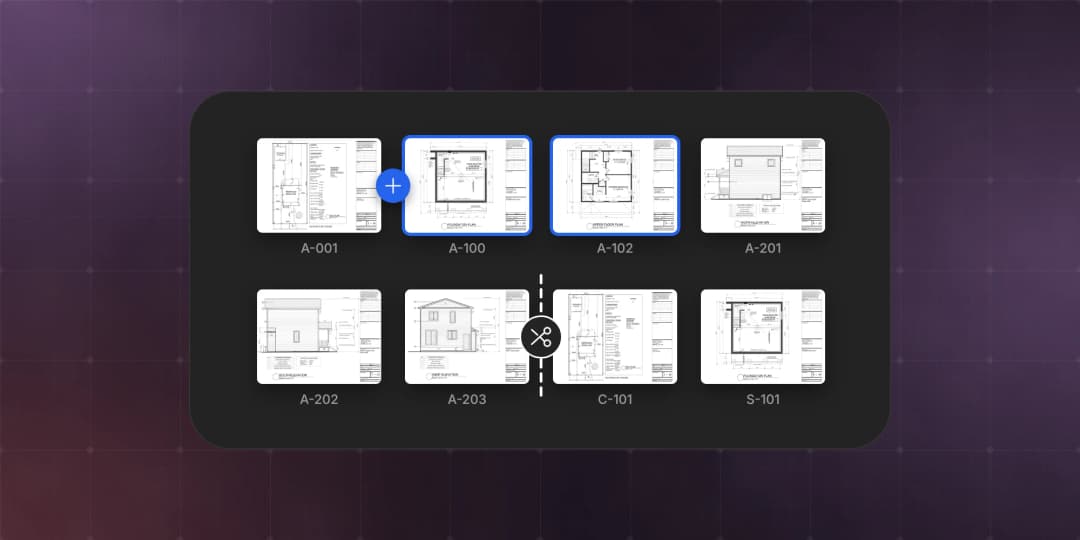
Introducing a new full-screen page manager. Reorder, rotate, insert, rename and split a document.
- Written by
- Notch Team
- Published
Organize is a new full-screen view for managing document content making it easier for our users to manipulate their documents quickly within Notch.
Open it from the Organize button in the sheet navigator, the app menu, or ⇧⌘O.
All of the tools you need to organize your document:
- Reorder by dragging. Select a few sheets and they move together.
- Rotate, duplicate, extract and delete from the toolbar.
- Insert pages from another document, or blank pages in the size and orientation you need. Point between two pages and a blue + drops them right there.
- Rename any sheet – double-click its name.
- Enlarge a page to check it before you move it. Press Space, then step through with the arrow keys.
Nothing Changes Until You Apply
Every edit is staged. Undo as much as you like, then Apply when the set looks right, or Discard and walk away. Markups and measurements move with their pages. Deleting pages? Organize shows you what goes with them before you confirm.
Split A Set With Scissors
Need the structural drawings as their own document? Click Split… and click the scissors between two pages to cut there. Every N pages does the cutting for you. Each new document is shaded and labelled so you can see exactly what you'll get, then Create makes them. The original set stays as it was, markups and all.
Want the whole reorganized set as a new document instead? Use Save as….
Works On Your Phone
Organize works in your phone's browser too. Tap pages to select them, use Move to… to reorder, and tap the scissors to split.
Something missing, or something broken? hello@notch.build.
Notch is the modern cloud workspace for construction teams — markup, measure, compare and share, right in the browser. Start for free.
— The Notch Team