How to Compare Two PDF Drawings and Find Every Change
Compare two PDF drawings by laying the revision over the original, aligning the pages and reading the color. Steps for Notch, Bluebeam Revu and Acrobat.
Published
To compare two PDF drawings, lay one page over the other, align the two so the line work matches, and read the differences from color. Notch tints the overlay, so anything only in the overlay shows as color with nothing under it, and anything only on the page below shows as original lines with no tint on them. Bluebeam Revu and Adobe Acrobat each have their own compare tools, covered below.
A revision usually arrives as a new PDF with a cloud on some of the changes, and the clouds are not always complete. A comparison of the two pages finds the changes nobody flagged. This guide covers the three ways to compare, the steps in each tool, and what to check once you have the result.
What are the ways to compare two drawing PDFs?
There are three: flip between the two pages by eye, overlay one page on the other so the differences show as color, or run an automatic comparison that marks the differences for you. Overlay is the usual choice for drawings because it needs no setup beyond alignment and works on any pair of pages.
| Method | How it works | Best for | Watch out for |
|---|---|---|---|
| Flip between pages | Open both pages and switch back and forth | A quick look at a page with few changes | Small moves in line work are easy to miss |
| Overlay | One revision is laid over the other, each in its own color | Seeing every change on a page at a glance; comparing more than two issues | The pages must be aligned and at the same scale to read cleanly |
| Automatic comparison | The software finds differences and marks them | Producing a list of changes you can step through | Results depend on its settings and on how the PDFs were made |
How do you compare two PDF drawings in Notch?
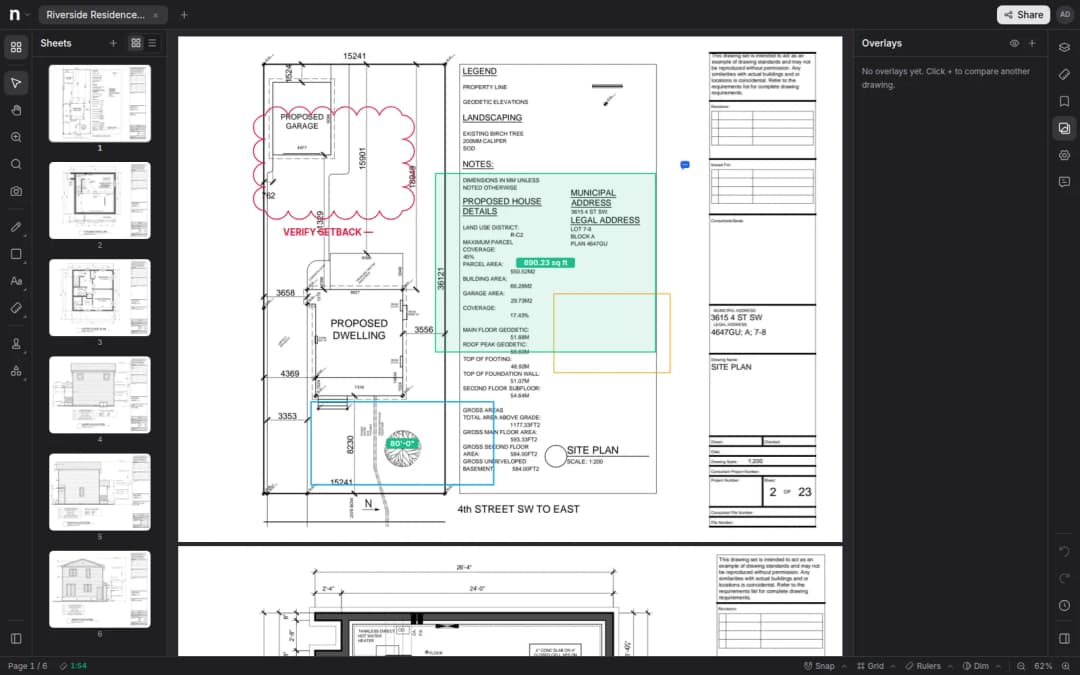
In Notch, open the current page, add the earlier version as an overlay from the Overlays panel, align it, then read the color. Notch lays the source page over the one you have open as a tinted layer, and white areas turn transparent so only the line work carries color. Overlays are part of the Solo and Pro plans, per the Notch plans and billing docs.
Add the overlay
- Open the PDF with the current revision and switch the right sidebar to the Overlays panel.
- Select Add overlay.
- In the dialog, search for the document that holds the other revision and select it.
- Pick the page to lay over the current one.
The source can be any page from the same document or from another document in your workspace. If both pages are calibrated, the overlay arrives pre-scaled so equal real-world lengths line up. To set that up first, see how to scale a PDF drawing.
Align the overlay
A new overlay is fitted to the page, which is rarely a perfect match. Align it before you read any color.
- Drag the overlay to move it. Use the corner handles to scale it and the ring to rotate it.
- For a precise fit, use two-point align. Click a point on the overlay, then click where it should sit on the page underneath. Repeat with a second point.
- Notch solves the move, scale and rotation from those two pairs in one step.
Grid intersections and column lines make good anchor points because they stay fixed from one issue to the next. If you only care about one area, such as a title block or a single detail, use Crop to trim the overlay to that region.
Read the result
Where the two pages agree, the tinted line work sits exactly on the original. Where they differ, you see one of two things:
- Color with nothing under it: work that is in the overlay and not in the page below.
- Original lines with no tint on them: work that is on the page below and not in the overlay.
Which one means "new" depends on which version you laid over which. With the steps above, the earlier revision is the overlay on the current page, so color with nothing under it is work that was removed in the current revision, and original lines with no tint are new work. Check one change you already know about before you trust the rest.
You can adjust each overlay's opacity and tint in Properties, and toggle overlays on and off from the panel. You can add several overlays to one page and each gets its own tint, so you can tell three issues apart. The compare revisions docs cover each control, and the revision compare page shows what else Notch does around it.
Mark up what changed
The overlay sits under your markups, so you can review on top of it: cloud the changes, add comments and measure anything the revision moved. When you hide the overlay, the markups stay. Overlays are live objects rather than a baked image, so you can nudge, restyle or remove them at any time, and they respect layers. A "Rev 3 vs Rev 2" overlay can sit on its own layer that you show only during review.
How do you compare two PDFs in Bluebeam Revu?
Revu has two tools: Compare Documents, which marks differences with cloud markups, and Overlay Pages, which shows each file's content in its own color. Bluebeam's support article, checked October 27, 2026 and written for Revu 20 and 21, says Compare Documents needs a Core, Complete or Max plan. It does not state a plan requirement for Overlay Pages.
Compare Documents (Revu 21)
- Go to Document > Compare Documents.
- Set Document A to the original and Document B to the revision.
- Choose a page range for each: All Pages, Current or Custom.
- Choose an alignment: Page Align (the default, for minor revisions with the same scale and position), Auto Align (for drawings that vary in size or scale), Manual Align (three matching points in the same order on each drawing) or Select Window (a region you draw).
- Choose an output folder, adjust Advanced Options if you need to, and select OK.
Revu creates a new PDF with "_Diff" added to the name and marks differences in orange clouds. The same markups appear in the Markups List. Bluebeam's Advanced Comparison Options page lists three default configurations, Printed Documents (same printer), Printed Documents (different printer) and Scanned Documents, and recommends keeping the default settings unless differences are being missed.
Overlay Pages (Revu 21)
- Go to Document > Overlay Pages.
- Add the files with Add Files or Add Open Files. Bluebeam recommends keeping the default layer colors.
- Choose Page Align, Auto Align or Manual Align. For manual alignment, turn on View > Snap to Content so the points land accurately.
- Select OK.
Bluebeam's guidance in the compare original PDFs with their revisions article is to use Compare Documents when you want cloud markups that list the differences, and Overlay Pages to see differences as colored layers or to compare more than two files. Menu names and steps differ slightly in Revu 20, so check your version.
How do you compare two PDFs in Adobe Acrobat?
In Acrobat, open Tools, choose Compare Files, select the older version on the left and the newer on the right, and start the comparison. According to Adobe's how-to page, checked October 27, 2026, Acrobat shows a Compare Results summary, lets you step through each change with Go to First Change, and filters the results by text, images, annotations or formatting.
Acrobat is built for documents in general, so its results are organized around text and formatting changes. Drawing changes are mostly line work, which is why many drawing reviews use an overlay instead. Menu names can differ by Acrobat version, so check yours.
What should you check after you compare?
A comparison finds the differences. It does not tell you which ones matter. Go through the result with a checklist:
- Confirm the page and sheet number on both versions match, and that you compared the right issue.
- Check one change you already know about, such as a cloud on the revision, to make sure you are reading the colors the right way around.
- Look at the title block: revision number, date and the revision table.
- Look for changes with no cloud on the revised page. These are the ones to raise with the design team.
- Check dimensions and notes near every change, since a moved wall can change a dimension string away from it.
- Mark each change you found with a cloud and a comment, so the next person sees the same list.
- Note any change that affects quantities and update the takeoff for that page.
Why does the comparison look wrong?
Most bad results come from alignment, not from the drawing. These are the usual causes:
| Problem | Likely cause | Fix |
|---|---|---|
| Color all over the page | The pages are not aligned | Re-align with two points on fixed features such as column lines |
| Double lines that never match | The two pages are at different scales | Fit one page to the other, or calibrate both before you compare |
| Differences along one edge only | The sheet was cropped or shifted on export | Align on the area you care about, or crop the overlay to it |
| Nothing shows as different | You compared a page with itself, or the wrong issue | Check the document name and revision on each |
| Scanned pages show noise | Scan skew and speckle read as changes | Use a scan-specific setting where the tool has one, and align by hand |
Frequently asked questions
Can I compare two PDF drawings for free?
Notch includes overlay compare in its Solo and Pro plans, and you can try either free for 14 days according to its plans and billing docs. Bluebeam's Compare Documents needs a Core, Complete or Max plan. Pricing changes, so check Notch pricing and the vendor's own page before you decide.
How do I compare two Bluebeam documents?
Go to Document > Compare Documents, set the original as Document A and the revision as Document B, choose an alignment and select OK. Revu creates a new PDF with the differences marked in clouds. To see them as colors instead, use Document > Overlay Pages. Both steps are above.
Can Acrobat compare two PDF drawings?
Yes, Acrobat has a compare tool under Tools that takes an older and a newer PDF and summarizes the differences. It lets you filter the results by text, images, annotations and formatting. For line work on drawings, an overlay shows the changes in context.
Do both PDFs need the same scale?
For a clean overlay, yes. If the pages are at different scales the line work will not match until you align or scale them. In Notch, calibrated pages arrive pre-scaled. In Revu, Auto Align is meant for drawings that differ in size or scale.
Next steps
Open the revised page and the previous issue in Notch, add the earlier one as an overlay and read the color. The revision compare feature page shows the tools around it, and the compare revisions docs walk through each control. If you are moving from Revu on a Mac, see Bluebeam on a Mac.