How to Redline a PDF Drawing in Notch, Acrobat and Revu
Redline a PDF drawing with clouds, callouts, text and color codes, then send it back so the drafter can act on it. Steps for Notch, Acrobat and Revu.
Published
To redline a PDF drawing, open it in a PDF editor with markup tools, cloud each area that needs to change, attach a callout or text note that says what the change is, keep each reviewer's marks on their own layer or color, and send the marked-up PDF back to the drafter. Calibrate the page first if any note gives a measured dimension.
This guide covers drawing redlines: review comments on a set and as-built redlines from the field. Redlining a contract (tracked changes in a Word document) and redacting a PDF (blacking out text) are different jobs and aren't covered here. The running example is an architectural floor plan sent out for review.
What is a redline on a construction drawing?
A redline on a construction drawing is a markup that shows a change, a correction or a question on top of the drawing, traditionally in red pen. Redlines are not the drawing itself. A drafter or designer reads them and updates the CAD or model, and the next issue of the drawing carries the change.
Redlines come from two places:
- Review redlines. A reviewer (the architect, an engineer, the owner's rep, the general contractor) marks up an issued set with corrections and questions before it goes out or before the next revision.
- As-built redlines. The contractor marks the field set to show what was actually built where it differs from the drawings. The Alaska Railroad Corporation's As-Built Standard (checked November 16, 2026) defines redlining as "the process of marking up a drawing or specification that reflects any modifications" and says the contractor's redlined as-builts become the record drawings once the owner approves them.
How to redline a PDF drawing in 5 steps
These steps work in any PDF editor with markup tools. The tool-specific clicks follow below.
- Open a copy you can mark up. Use the current issue of the PDF. Check the title block and revision schedule so you are not reviewing a superseded sheet.
- Set up how you will separate your marks. Make a layer for your review round, or agree a color per reviewer with the team.
- Calibrate the page if you will write dimensions. Set the scale from a known dimension so any measurement you add is in real units. See how to scale a PDF drawing.
- Mark each item with the right tool. Cloud the area, add a callout or text that says what to change, and strike through or highlight existing text where the change is to a note.
- Send it back in a form the drafter can use. A flattened PDF for the record, an editable PDF or shared document for a working review, or a list of every markup when someone needs to track them.
Which markup to use for what
A clear redline usually combines two tools: a cloud to show where, and a callout or note to say what.
| Markup | Use it for | Example on a floor plan |
|---|---|---|
| Revision cloud | Marking the area that changes | Cloud the corridor where a door moves |
| Callout (text on a leader) | Saying what to change, pointing at the exact spot | "Move door 104 2'-0" north" pointing at the door |
| Text box | A longer note not tied to one point | A general note about finish tags on the sheet |
| Line or arrow | Showing where something moves to, or adding a missing line | An arrow from the old door location to the new one |
| Strikethrough on the page's text | Deleting a note or dimension | Strike "GWB TYPE X" in a wall-type note |
| Highlight | Drawing attention to existing text | Highlight a room name that doesn't match the schedule |
| Comment pin | A question for the designer | "Is this wall rated? Not shown in the wall types." |
| Stamp | Status of the whole sheet | REVIEWED, REVISED or NOT FOR CONSTRUCTION |
| Delta tag | Tying a change to a revision number | A triangle with 3 beside each cloud |
For cloud detail, including scallop size and delta tags, see how to add revision clouds to a PDF.
What do the colors mean in redlines?
No single US color standard applies to every project. Red is the usual color for review comments, which is where the word comes from. For as-built redlines, owners write their own rules, and two published standards assign red and green opposite meanings.
| Standard | Red | Green | Blue |
|---|---|---|---|
| Alaska Railroad Corporation As-Built Standard | Items to be added | Items to be deleted | Comments that are not to be added to the drawing |
| UFGS 01 78 00, Closeout Submittals (US federal guide specification, August 2026) | Deletions: over-strike deleted lines, lettering and leaders | Additions | Items needing special information, coordination or detailing |
Both checked November 16, 2026. UFGS 01 78 00 also asks for a legend if other colors are used and for written explanations on the markups, not graphics alone.
Check the project specification's closeout section or your firm's drafting standard first. If neither says anything, state your color key on the first sheet you send back.
How do you redline a PDF in Notch?
In Notch, our PDF editor, open the PDF, pick a tool from the Shapes, Pen or Text flyouts in the left tool rail, and click or drag on the page. Every markup stays a live object you can select, restyle, move or delete later, and markups save as you work for everyone with access to the document, according to the Notch markups docs.
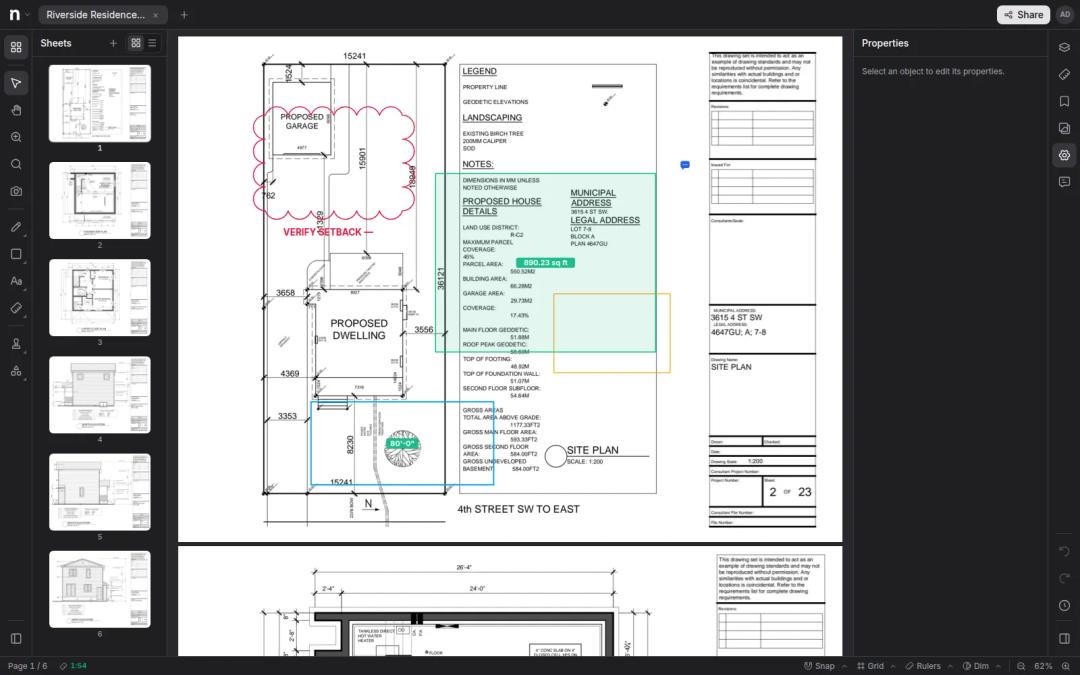
Mark up the floor plan
- Open the PDF and go to the page you're reviewing.
- To file your marks together, open Layers in the right sidebar, select New layer, name it (for example "Arch review 2"), and click it to make it the active layer.
- Cloud the first change: Shapes > Revision cloud (C), then drag around it. Cloud+ (K) in the same flyout draws a cloud with a note attached.
- Say what to change: Text > Callout (Q). Click the point, then place the text box and type.
- For a strike or highlight on the drawing's own text, pick Strikethrough text or Highlight text in the Text flyout and drag across the note. Select text (Shift+T) does the same from a menu after you select.
- For a question, use Comment (N) to drop a pin with a note. For a back-and-forth with replies and @mentions, pin the comment from the Discussion panel instead.
- Add a status stamp to the page from the Tool chest at the foot of the tool rail: the Drafting library's Review group has APPROVED, REVIEWED, FOR REVIEW, REVISED, NOT FOR CONSTRUCTION, VOID and DRAFT.
To change a markup's color, select it and use the Properties panel: stroke color and width, line pattern, fill and opacity. Shift-click several markups to restyle them together.
What's on each plan
According to the Notch docs, the Free plan includes the pen tools, shapes (revision cloud included), text boxes, callouts, comment pins and text highlights. Layers, stamps, the trade libraries, tags and measurements need Solo or Pro. Markup editing needs a Pro or Collaborator seat; a viewer seat views and comments. See Notch pricing for current plans.
How do you redline a PDF in Adobe Acrobat?
In Adobe Acrobat, go to All tools > Add comments. The comment tools appear in the Quick action toolbar. The tool names below are from Adobe's help pages, checked through search results on November 16, 2026. Adobe renames and moves Acrobat's tools between versions, so check the labels against yours.
- Open the PDF and go to All tools > Add comments.
- For a cloud, choose the Cloud tool from the drawing tools. The same set has Line, Arrow, Rectangle, Circle, Polygon and Connected lines, per Adobe's shapes and drawings help.
- For a note on a leader, use Text callout: click once for the end point, again for the text box, then type.
- To strike or highlight existing text, pick the Select text tool, select the note, and choose Strikethrough text or Highlight text from the markup toolbar (Adobe's markup help).
- For a question, use Add a comment to drop a sticky note.
Adobe says the free Acrobat Reader can add comments, highlights, sticky notes and drawings (Adobe's PDF reader page, checked November 16, 2026).
How do you redline a PDF in Bluebeam Revu?
In Bluebeam Revu 21, the markup tools are under Tools > Markup and on the Shapes and Text toolbars. The shortcuts below come from Bluebeam's support site, checked November 16, 2026.
- Open the PDF. To file your marks, right-click a layer in the Layers panel and choose Markup Layer, so new markups land on it (Bluebeam layers help).
- Cloud (C) or Cloud+ (K): drag a rectangle, or click each point for a polygon. Cloud+ then places a text box (Cloud+ tool).
- Callout (Q): click the leader's end point, click where the text box goes, type, then press Esc (Callout tool).
- Text Box (T): drag a box and type (Text Box tool).
- Arrow (A): drag to place it (Arrow tool).
- To restyle, right-click the markup and choose Properties. Set As Default applies that style to the next markups of that type.
Revu's Markups List shows each markup's author, layer and status. To set a status, right-click the markup and choose Set Status. The default statuses are Accepted, Rejected, Completed, Cancelled and None, and you can add your own, according to Bluebeam's Markups List help. For quantities on the same page, see how to calibrate scale in Bluebeam.
How do you keep redlines readable?
Redlines fail when the drafter can't tell what to change, who asked for it or whether it's still open. These habits prevent most of that:
- One layer per reviewer or review round. In Notch, the layers docs suggest a layer per round so old rounds can be hidden but never lost. Hiding a layer with the eye toggle is per person, so teammates still see it.
- One color key, written down. Follow the project's standard, and say which one on the first sheet.
- A cloud plus words for every change. UFGS 01 78 00 asks for "frequent written explanations"; a cloud with no note makes the drafter guess.
- Real numbers. If a note gives a dimension you measured, calibrate the page first and say so. Otherwise, quote the dimension from the drawing.
- Mark the related views. A door moved on the plan also changes the door schedule and maybe an elevation. Mark every sheet it touches, or note which ones.
- Track status. In Notch, set each markup's Status (Accepted, Rejected, Cancelled or Completed) in Properties; the worksheet lists every markup with its page, layer, status and author so you can filter for what's still open.
Before you redline a new issue, compare it with the previous one so your marks cover what actually changed. See how to compare two PDF drawings.
How do you send redlines back to the drafter?
Send the drafter what they need to act on each mark. That is usually one of three things, and the choice depends on whether the marks need to stay editable.
| Send | When | In Notch |
|---|---|---|
| Flattened PDF | The record copy, printing, or a reader who only needs to look | Export… > Flattened: markups become part of the page |
| Unflattened PDF | The drafter works in Bluebeam or Acrobat and will mark items done | Export… > Unflattened: each markup stays an editable PDF annotation |
| Shared document | A working review where the drafter replies on the same set | Share > New link (View link or Edit link), or invite by email |
Export works on every plan, and the export dialog can include markups, measurements and page overlays separately, according to the Notch export docs. View links open without a Notch account and work on every plan; edit links and Can edit guests need Pro, per the sharing docs.
In Revu, flattening merges the markups into the page; how to flatten a PDF in Bluebeam covers the options.
If a mark is a question the designer has to answer in writing, send it as an RFI with the marked-up page attached; see what an RFI in construction is and how to write one.
For as-built redlines, the contractor's marked set goes to the owner or designer at closeout, and the record drawings are drafted from it. Check the specification for format: UFGS 01 78 00 allows red-lined hard copies, red-lined PDFs or both, depending on how it's tailored for the project.
Frequently asked questions
Can you redline a PDF for free?
Yes. Notch's Free plan includes shapes (with the revision cloud), callouts, text boxes, comment pins and text highlights, according to its docs. Adobe says the free Acrobat Reader can add comments, highlights, sticky notes and drawings. Measuring to scale and layers need a paid plan in Notch.
Does redlining change the original PDF?
No. Redlines are annotations on top of the page, so the drawing underneath is unchanged and the marks can be moved or deleted. Flattening merges the markups into the page so they can no longer be edited. In Notch, export a flattened copy and the document itself keeps its editable markups.
Can other people see my redlines?
In Notch, markups on a Cloud document are visible to everyone with access to it, and share links show them too. Hiding a layer only hides it for you. In Acrobat and Revu, others see your marks when you send them the saved PDF or share it through the vendor's own review service.
How do you remove redlines from a PDF?
Select the markup and delete it. In Notch, put each review round on its own layer, then select that layer's items in the Layers panel and delete them from the panel header. Marks that were flattened into the page can't be removed this way; go back to an unflattened copy.
Next steps
Open the floor plan PDF in Notch, make a layer for your review, and cloud the first change with Revision cloud (C). The construction PDF markup page shows the full tool set, and the Notch markups docs cover styling, status and stamps. If your redlines include quantities, how to measure area on a PDF covers calibrated measurements.