Marking up drawings
Shapes, pen, text, comments, stamps, and signatures — plus styling, layers, and undo.
Everything you draw in Notch is a live object — select it, restyle it, move it, or delete it at any time. Markups save as you work and are visible to everyone with access to the document.
The tool families#
The tool rail groups markup tools into flyouts:
- Pen — freehand drawing, highlighting, and whiteout.
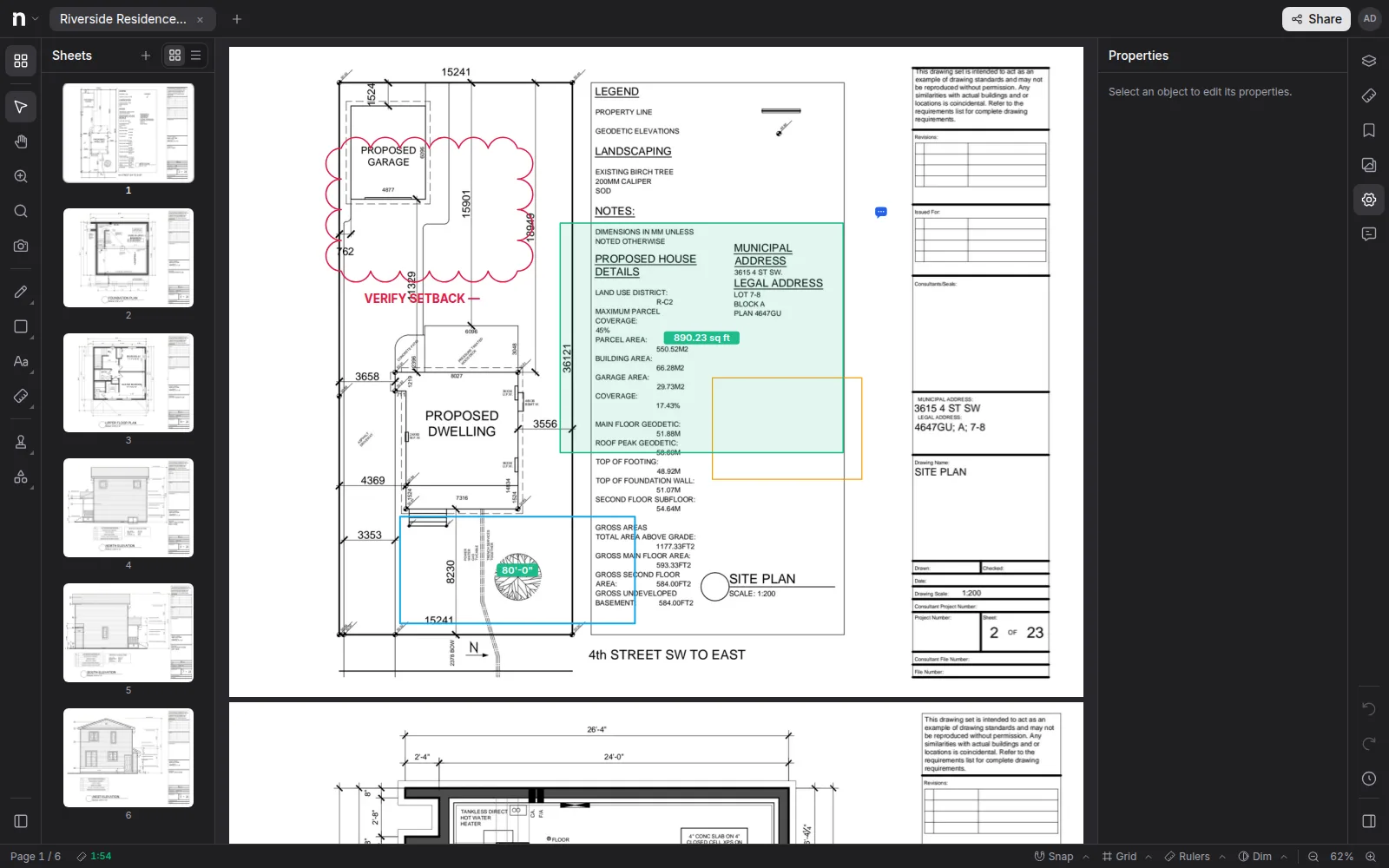
- Shapes — rectangle, ellipse, line, arrow, polygon, star, revision cloud, and image placement.
- Text — select text on the sheet, plus typewriter text, text boxes, callouts with leader lines, links (K), comments (Q), and signatures (S).
- Measurements — lengths, areas, counts, and more (see Measurements & calibration).
Below those, the discipline libraries — Drafting, Design, Systems, Civil, and Construction — hold ready-styled preset tools: review stamps, drafting symbols and line types, walls, doors, materials and hatches, MEP, and site tools. Pick one and it draws in its finished style.
Styling markups#
Select any markup and the Properties panel opens with its appearance controls: stroke color and width, line type, fill, and opacity. What you see depends on the markup — a cloud exposes different controls than a text box.
Hold Shift and click (or drag a marquee) to select several markups at once and style or delete them together.
Text markups and text on the sheet#
The Select text tool works on the drawing's own text: drag across labels or notes, then highlight, underline, strike out, or redact what you selected. The marks anchor to the glyphs, so they stay put.
For your own text, use Text (click to type), Text box (drag a frame), or Callout (a text box with a leader arrow you can point at anything).
Comments and links#
- Comment (Q) drops a pin with a note — good for questions and punch-list items. The note text lives in the Properties panel.
- Link (K) makes a hotspot that jumps to a URL, another page, or another markup. Double-click a link on the canvas to follow it.
Layers#
Every markup sits on a layer. The Layers panel groups your markups, toggles their visibility, and is where you add layers to separate trades, review rounds, or authors. Measurements and overlays nest under layers too.
Stamps and signatures#
Review stamps live in the Drafting library; the wider tool library and your own custom tools are covered in Stamps, custom tools & signatures. Signatures are personal: create one from the Text flyout (draw it or type it), and it's saved to your account for one-click placement on any document.
History and undo#
Ctrl+Z / Ctrl+Shift+Z undo and redo, and the History panel lists your edits this session, grouped by time — click any entry to jump the document back to that point. Your markups themselves persist even after the session history resets.