Sharing a document
Send view-only links to anyone, or invite outside collaborators to a single drawing.
The Share button in the editor's top bar covers both ways to get a drawing in front of someone outside your team: a public link anyone can open, or a personal invite to collaborate on that one document.
Share links#
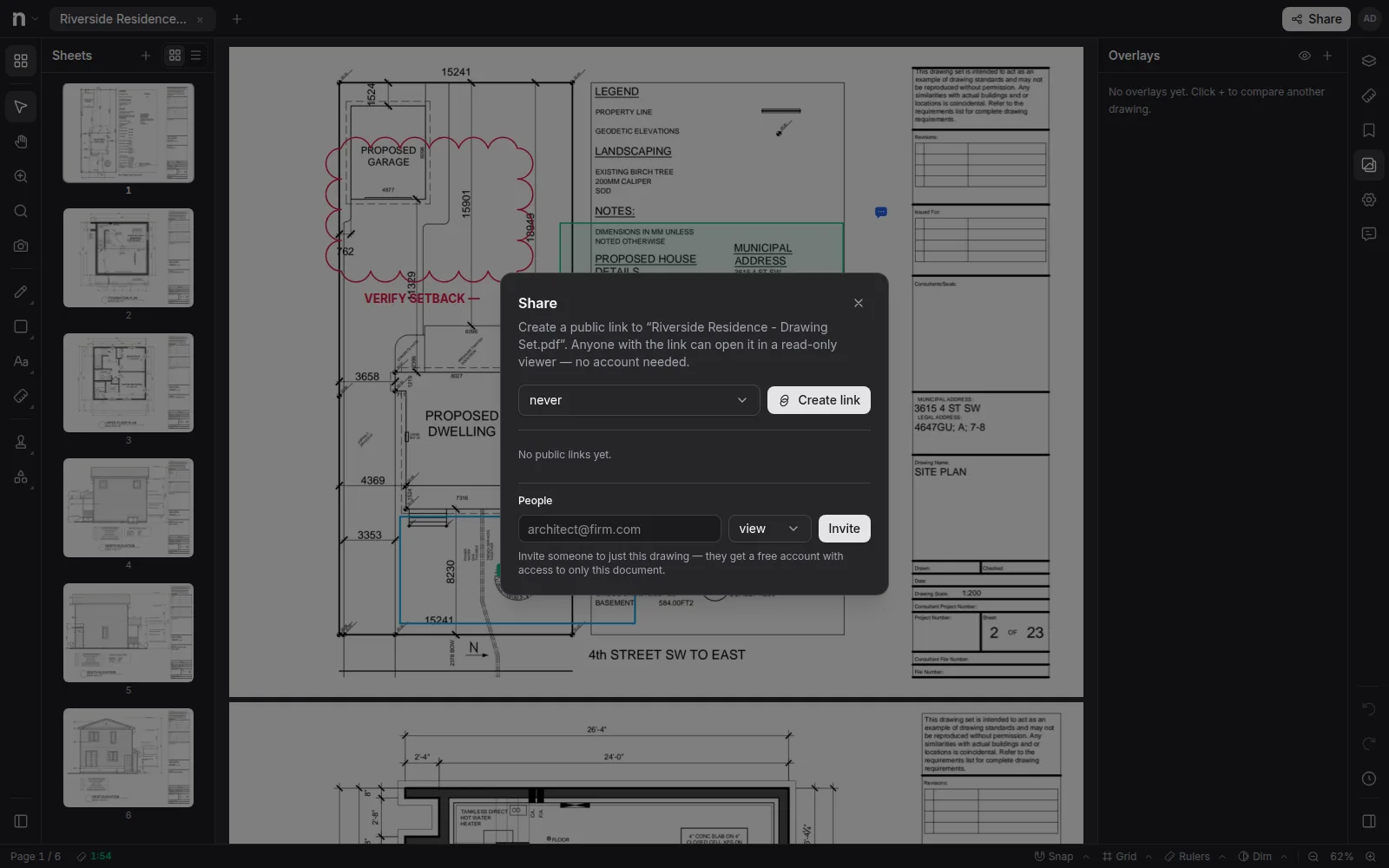
Use New link in the Share dialog to create a View link (read-only) or an Edit link, and send it to anyone — no Notch account needed. Recipients get a clean viewer with the document and its markups.
- View or edit — a view link lets people scroll and zoom; an edit link also lets them mark up. Editing rides your plan: an edit link works on the Free and Pro plans, but opens view-only if your Pro plan has ended.
- Revoke any link at any time from the same dialog; the link dies immediately.
- Links show the document as it was shared, including markups on layers that are visible by default — layers you've hidden by default stay private.
Share links are great for "here's the current set" moments: subs pricing from it, an owner checking progress, a consultant who just needs to look.
Inviting people to one document#
The People section of the Share dialog invites an outside collaborator — the architect, an engineer, the owner's rep — to this document only, by email:
- Choose Can view or Can edit.
- They accept the invite link (valid for 14 days), signing in or creating a free account.
- The drawing then appears in their Shared with you page, and they open it in the full editor — with editing tools if you granted them.
Guests are free: they never take a paid seat in your workspace, and they can only see the documents they were invited to.
Which one to use#
- Whole team, many documents → invite them to the workspace as members or free viewers (Managing your team).
- One outside collaborator, one drawing → a People invite from the Share dialog.
- Anyone, no account, zero friction → a share link (view or edit).