Managing pages
Reorder, rotate, rename, insert, duplicate, and delete sheets — markups follow along.
Sheets get added, superseded, rotated, and reshuffled constantly. The sheet navigator handles all of it without leaving the browser — and your markups and measurements stay glued to their pages through every change.
Open the sheet navigator#
Click Pages at the top of the tool rail. Thumbnails render in a grid or a compact list (toggle in the panel header). Click any page to jump to it.
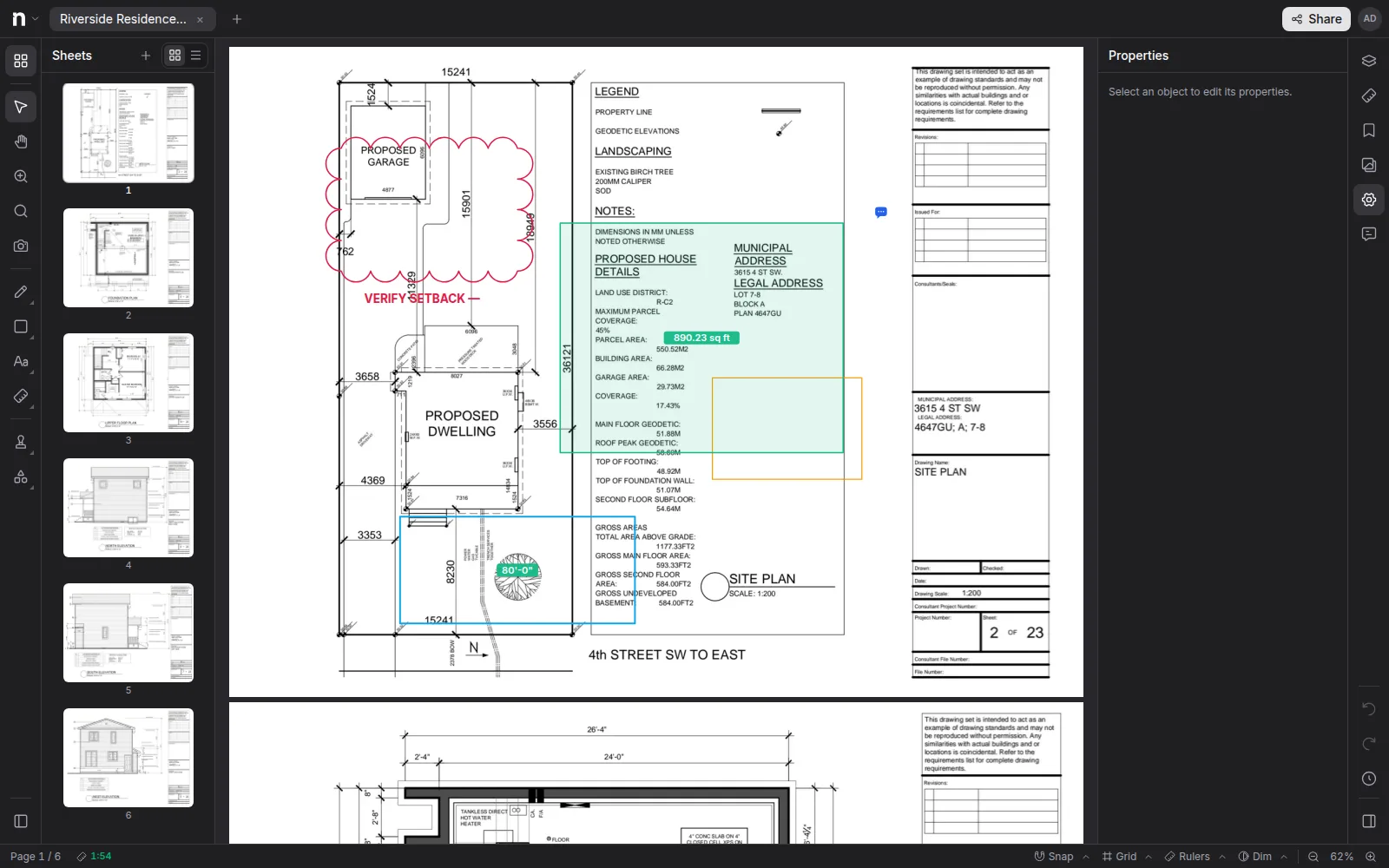
Page operations#
Each page has a ⋯ menu:
- Insert blank above / below — adds a blank page (Letter, portrait).
- Duplicate page — the copy lands right after the original.
- Extract page — pulls the page (or selection) out into a new document.
- Rotate left / right — 90° steps; markups rotate with the page.
- Delete page.
- Rename — in the list view, edit the sheet title inline.
Reorder by dragging a thumbnail — a drop line shows where it will land.
Select several pages first (click, then shift/ctrl-click) and the menu acts on the whole selection — rotate five sheets at once, or delete a superseded run.
Markups follow their pages#
Every operation re-anchors the overlay content for you: reorder a sheet and its markups and measurements travel with it, duplicate a page and its markups are cloned, delete a page and they go with it. You never re-place annotations after a page edit.