Navigating the editor
Tabs, the command palette, sheet thumbnails, search, zoom, and every sidebar panel.
The editor is built for whole drawing sets, not single files — tabs across the top, sheets on the left, panels on the right, and a command palette that gets you anywhere.
Document tabs#
Open as many documents as you need; each gets a tab in the top bar.
- Click a tab to switch — it's instant, no reload.
- Close with the × or a middle-click.
- Right-click for Close, Close others, Close tabs to the right, and Duplicate.
- The + button opens a searchable browser of your workspace documents.
- Closing the last tab returns you to the workspace.
Your open tabs survive a page reload, so a set you're working through stays put.
The command palette#
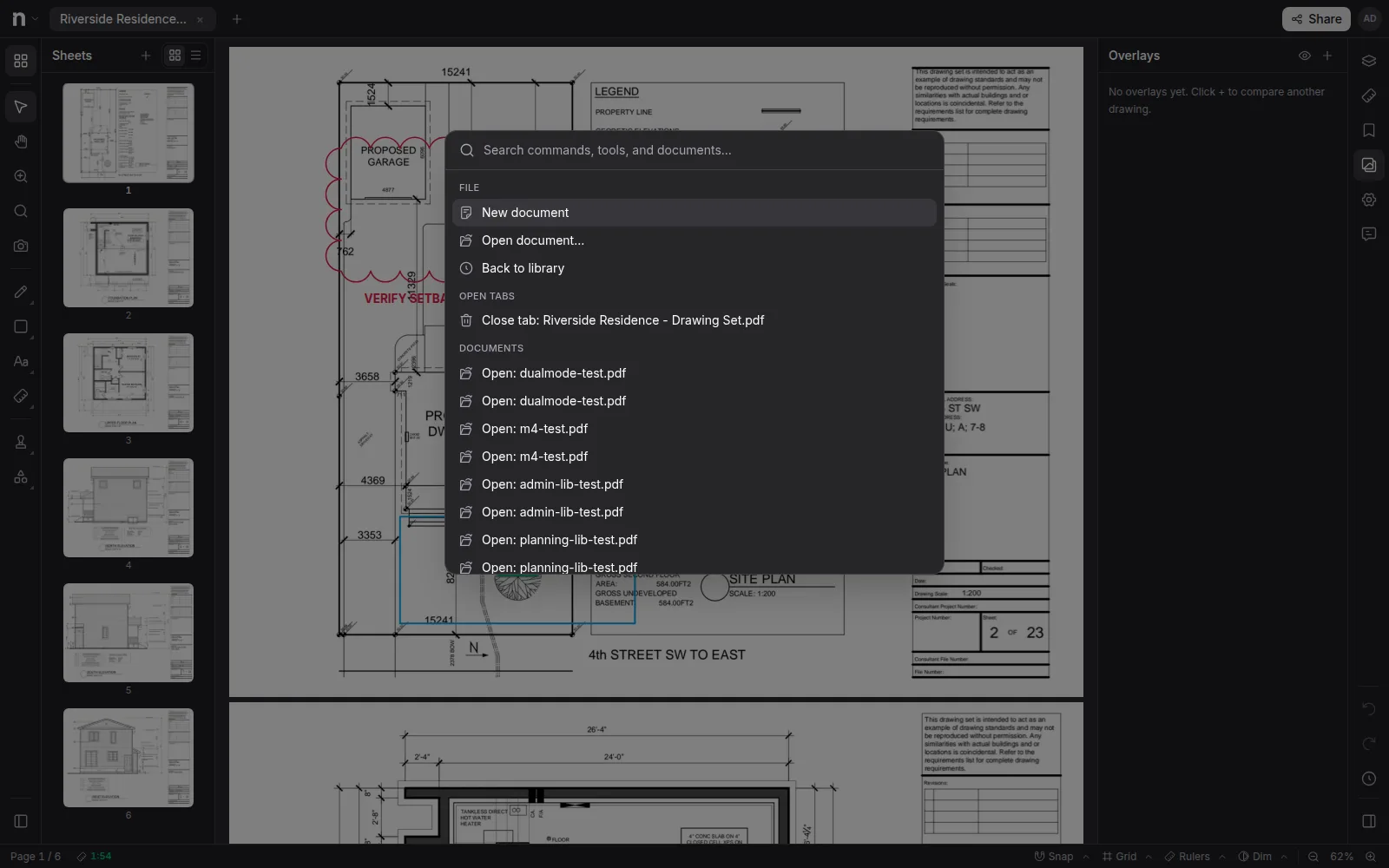
Press Ctrl+K (⌘K on Mac) anywhere in the editor. Type to switch to an open tab, open any document in the workspace by name, close tabs, or zoom — it's the fastest way to move around a big set.
Sheets and search (left sidebar)#
The Pages button at the top of the tool rail opens the sheet navigator — thumbnails of every page, in a grid or a list, click to jump. It's also where page management lives.
The Search button (or Ctrl+F) searches the document's text across all pages: results show a snippet per match, click one to jump there with every match on the page highlighted.
Zoom and pan#
Documents open fit to the page. Zoom with the − % + controls in the status strip, or grab the Zoom tool (Z) and drag a box to zoom to exactly that region. With the Zoom tool armed you can also just click to zoom in a level, or Ctrl/⌘ + click to zoom back out. The Hand tool (H) pans; Select (V) is the default pointer.
The status strip#
Along the bottom: the current page number, the page's scale (green when calibrated — click it to set one), toggles for Snap, Grid, and Rulers, a Color control (adjust or wash out the sheet's colors), the Dim control (fades the drawing toward white so markups pop — with a 0–100% slider), and zoom.
Panels (right sidebar)#
- Layers — every markup and measurement, grouped by layer. See Organizing with layers.
- Measurements — the takeoff roll-up with grouping and totals.
- Bookmarks — pin pages you return to often: + bookmarks the current page, click a row to jump, hover to rename or remove. Bookmarks are shared with the whole document.
- Overlays — the revision-compare tool. See Comparing revisions.
- Properties — style and details for whatever is selected on the canvas.
- Discussion — team chat and pinned comments about the drawing in one thread, with replies, reactions, and @mentions (including @Notch AI).
- Assistant — ask Notch AI about the drawing set.
- History — a timeline of your edits this session, grouped by time. Click any entry to jump the document back to that state.