Measurements & calibration
Calibrate a sheet, measure lengths, areas, and counts, and roll totals up in the takeoff panel.
Takeoffs in Notch are measurements drawn straight on the sheet: lengths, perimeters, areas, and counts that read in real-world units once the page is calibrated.
Calibrate the page first#
Measurements are only as good as the page scale. Calibrate each sheet one of two ways:
- Pick a scale preset — standard architectural, engineering, and metric scales (for example 1/4″ = 1′-0″ or 1:100) straight from the status strip.
- Calibrate from a known dimension — click two points on something with a labeled length (a dimension string, a grid spacing) and type the real distance.
Notch often reads the scale straight from the title block and pre-fills it (shown with an AI badge on the scale button) — always confirm it against a known dimension before you rely on quantities.
The status strip shows the active scale in green once a page is calibrated. Calibration is per page, so a mixed set (plans at one scale, details at another) works fine.
The measure tools#
- Measure — length and perimeter in one tool: two clicks for a single length, keep clicking to trace a running length, or close the loop for a perimeter.
- Area — click the corners of a region; the area shades in and shows its quantity.
- Cutout — punches an opening out of an existing area, and the net quantity updates.
- Volume — an area with a depth (set in Properties), for cubic quantities like concrete or excavation.
- Angle — measures the angle between two segments.
- Count — click once per item; the tally is the measurement.
Each measurement carries the same appearance controls as markups (stroke, fill, opacity, label visibility), and you can rename it in Properties.
Units#
Values display in the calibration unit by default. Each measurement can override its own display unit in Properties — measure a run in feet and show it in meters. Group totals stay in the calibration unit so mixed displays still sum.
The takeoff panel#
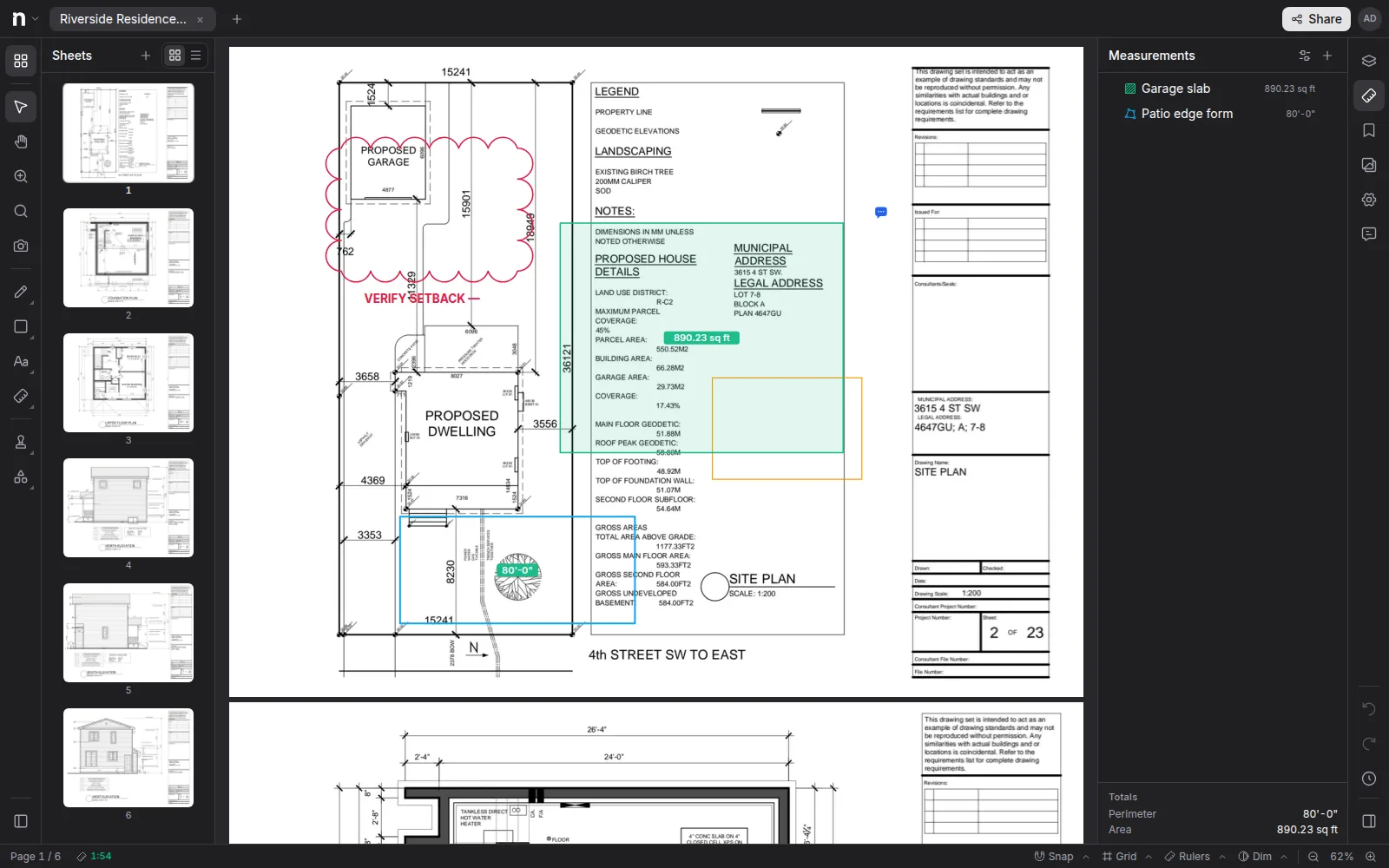
The Measurements panel in the right sidebar is your takeoff roll-up: every measurement on the document in one list, with grouping by layer, type, page, or cost code — grouping levels stack, so "cost code, then page" gives you nested subtotals. Assign a cost code and division to any measurement in its Properties to make that grouping useful.
Tips#
- Snapping picks up line work on the drawing as you measure — corners and intersections pull the cursor in.
- Put each trade's takeoff on its own layer, then group the panel by layer for per-trade totals.