Your workspace & library
Upload and organize drawings, file them into projects, and recover them from Trash.
Your workspace home is the library: every drawing set your team has uploaded, plus projects, trash, and settings in the left navigation.
The library#
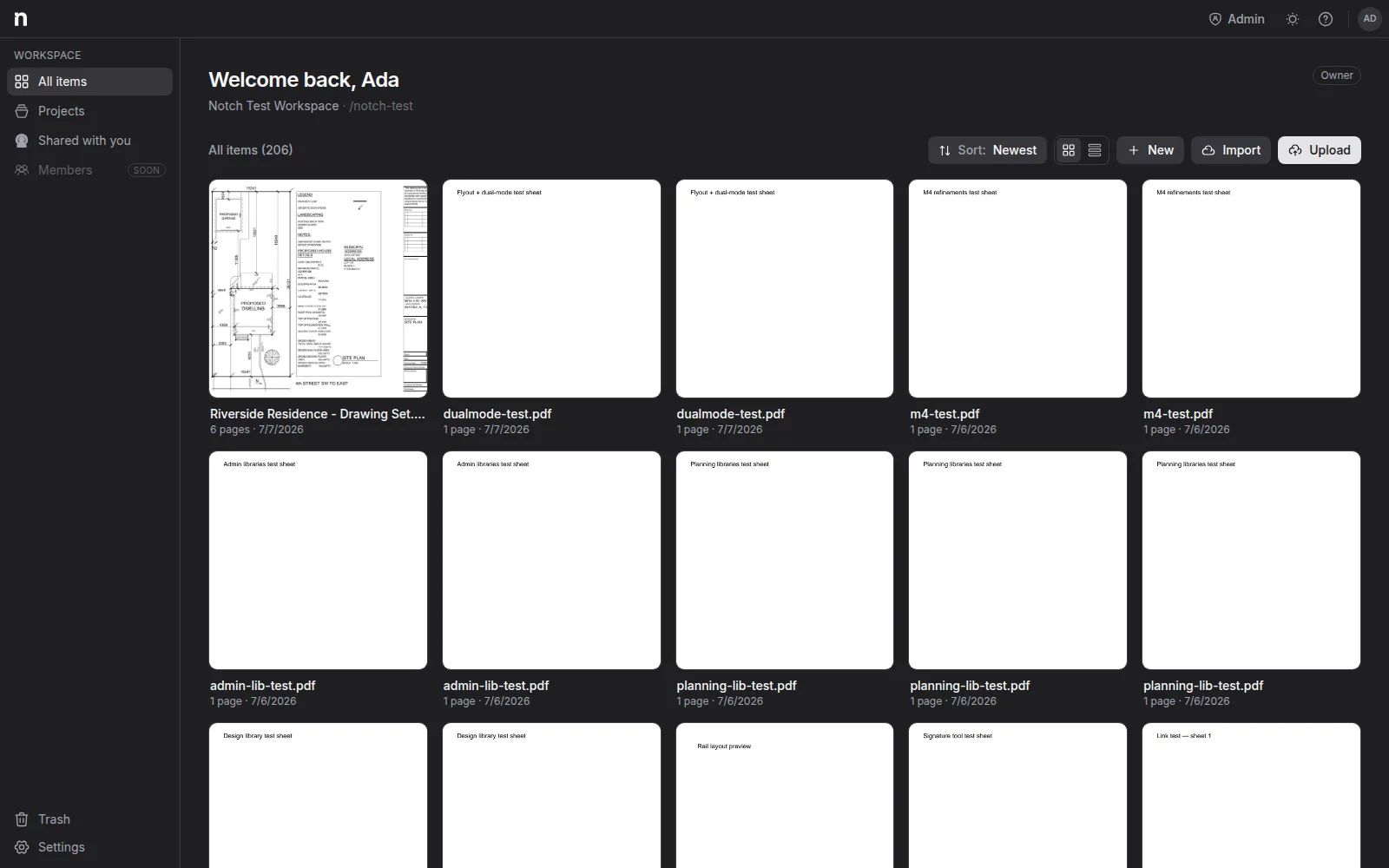
All items lists every document in the workspace. Each card shows a preview of the first page (generated automatically after upload — it appears within a few seconds), the page count, and the date.
- Switch between a grid of cards and a compact list with the view toggle.
- Sort by Newest, Oldest, or Name from the sort menu.
Adding documents#
Three buttons in the top-right corner of the library:
- Upload — pick files, or just drag them anywhere onto the library. You can drop several at once; they upload one after another with per-file progress. PDFs go straight in; images and scanned drawings (PNG, JPG, TIFF, and more) are converted to PDF automatically.
- New — create a blank PDF from scratch: name it, pick a page size (US/ANSI, Architectural, or ISO), portrait or landscape, and up to 100 pages. It opens straight into the editor.
- Import — pull files in from Google Drive, Box, or Dropbox. See Importing from cloud storage.
Document actions#
Every document has a ⋯ menu: Document properties, Move to project…, Duplicate, and Delete.
Document properties is the one-stop dialog — rename the document, see its pages and creation date, and file it into a project. Duplicate makes an independent copy ("… copy") in the same project.
Projects#
Projects are folders for filing documents — one per job, permit set, or bid package. Create one from the Projects section with a name and an optional description.
To file a document, drag its card onto a project folder (it leaves the main view immediately), or set the project in Document properties. Folder tiles show small previews of the drawings inside and a file count.
Trash#
Deleting a document moves it to Trash. From there you can Restore it or Delete permanently — permanent deletion removes the stored files and can't be undone.
Shared with you#
Drawings that someone invited you to as a guest collaborator — from another team's workspace — appear under Shared with you, each labeled "Can edit" or "View only". See Sharing a document.